What is SignalR
ASP.NET SignalR is a library for ASP.NET developers that simplifies the process of adding real-time web functionality to applications. Real-time web functionality is the ability to have server code push content to connected clients instantly as it becomes available, rather than having the server wait for a client to request new data. SignalR can be used to add any sort of "real-time" web functionality to your ASP.NET application. While chat is often used as an example, you can do a whole lot more. Any time a user refreshes a web page to see new data, or the page implements long polling to retrieve new data, it is a candidate for using SignalR. Examples include dashboards and monitoring applications, collaborative applications (such as simultaneous editing of documents), job progress updates, and real-time forms. SignalR also enables completely new types of web applications that require high frequency updates from the server, for example, real-time gaming. SignalR provides a simple API for creating server-to-client remote procedure calls (RPC) that call JavaScript functions in client browsers (and other client platforms) from server-side .NET code. SignalR also includes API for connection management (for instance, connect and disconnect events), and grouping connections.
How use the project
Here's a step-by-step guide on how to use your live collaboration project:
-
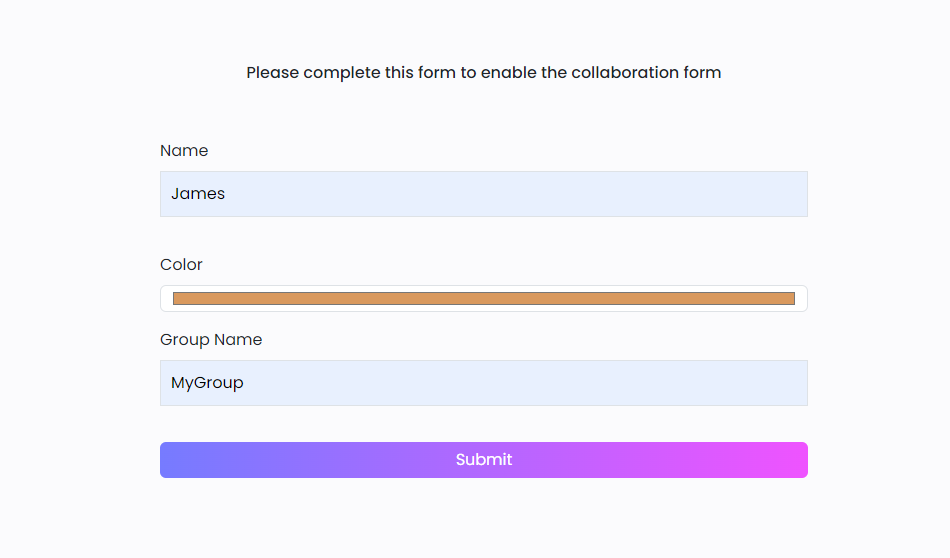
Fill out the initial form: The first step to using the live collaboration project is to fill out the initial form. This form includes three fields: name, group name, and color.
- Name: This is your display name and will be visible to other members of the group. Name should be unique in your group.
- Group name: This is a unique ID that allows you to get into a specific group. Make sure to remember the group name as you will need it to access the collaboration form
- Color: This is the color for your cursor, and it will be visible to other members of the group.
-
Access the collaboration form: Once you have filled out the initial form, you can access the collaboration form. In this form, you will be able to collaborate in real-time with other members of the group.
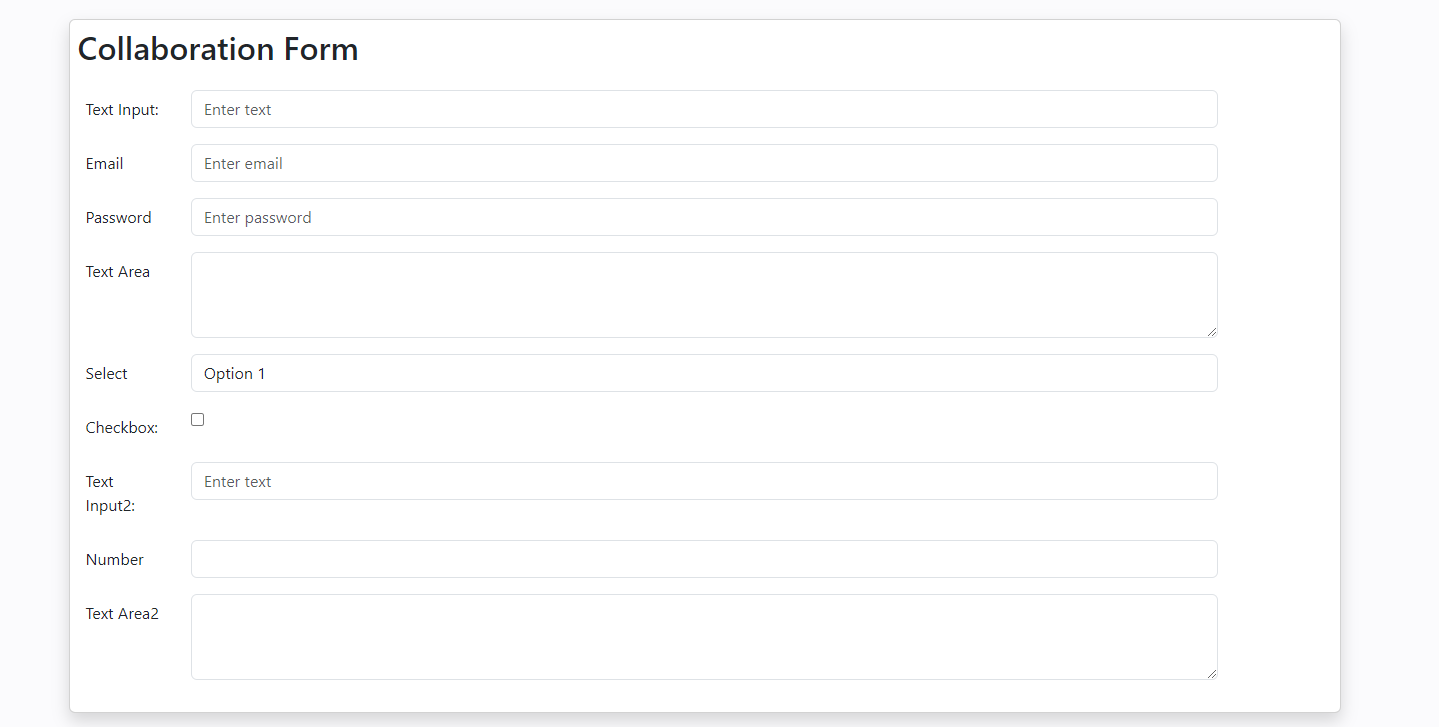
- See other users' input: In the collaboration form, you can see the values that other users have put in. This can help you collaborate more effectively with your group members.
-
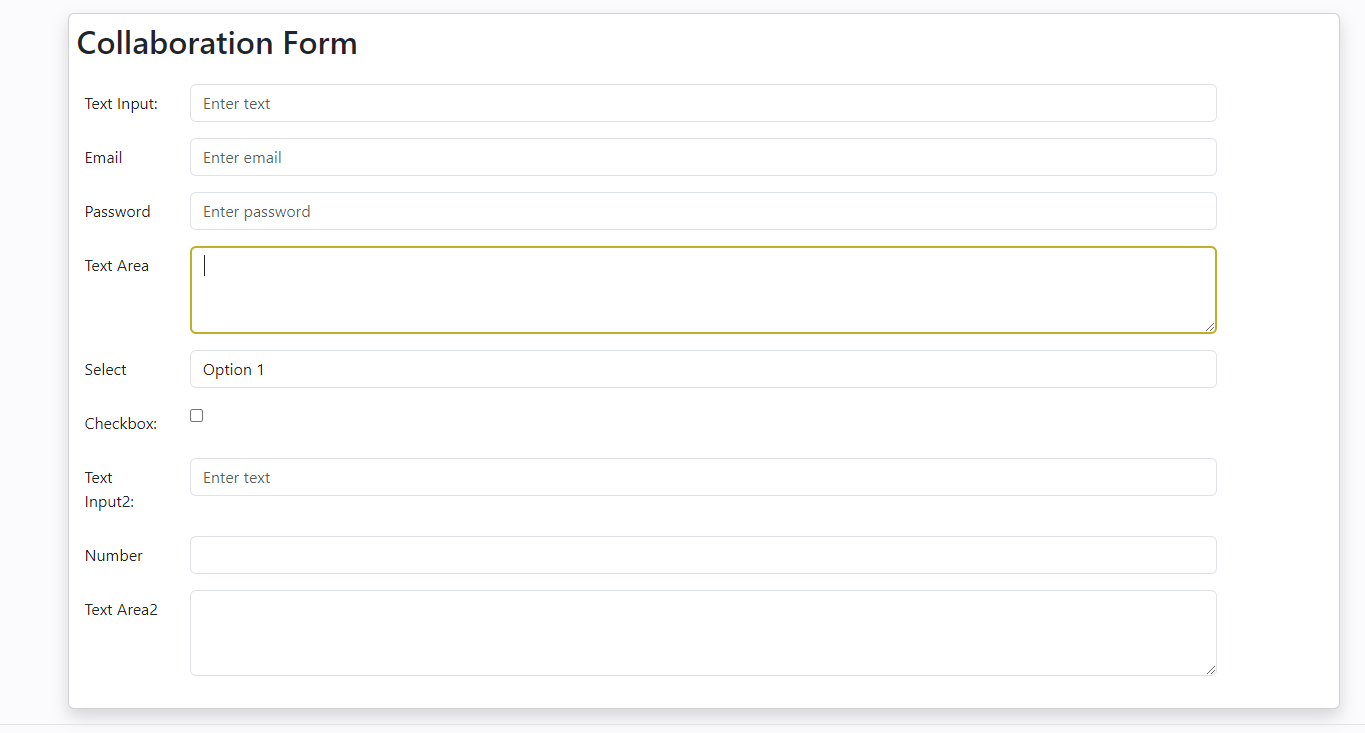
Highlighted fields: When a user is typing or focused on a field, it will be highlighted with the color that the user has selected. This helps other members of the group know which fields are being worked on and who is working on them.
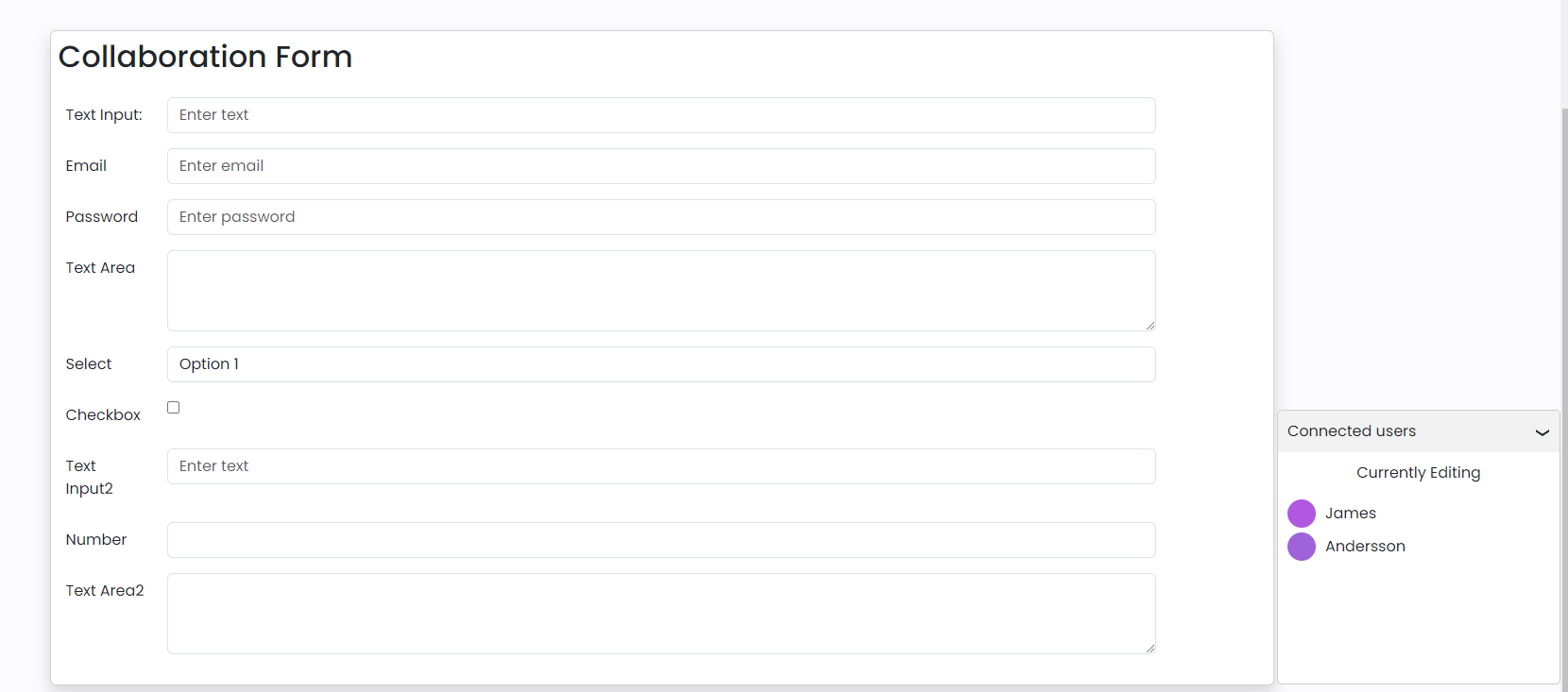
- See the members of the group: In the collaboration form, you can see the members of the group and their selected color. This can help you keep track of who is working on what and can help you collaborate more efficiently.
- User cursor: Your cursor will be visible to other members of the group and will appear in the color that you have selected. This can help other members of the group know where you are working and what you are working on.
- Data deletion: It's important to note that all of the information entered into the initial form, as well as the collaboration form and any data entered into it, will be deleted when the session is done. This is to ensure the privacy and security of your information and to prevent any unauthorized access to your data.
That's it! With these steps, you should be able to use your live collaboration project and collaborate effectively with other members of the group.
About me
Experienced Web Application Developer with a demonstrated history of working in the financial services industry. Skilled in C#, JavaScript, and Object-Oriented Programming (OOP). Strong engineering professional with a Bachelor's degree focused in Software Engineering from New England Institute of Technology.